LinkedIn is no longer just a professional networking platform. For many businesses, creators, agencies, SaaS brands, consultants, recruiters, and B2B companies, LinkedIn has become one of the most important places to share updates, build authority, promote services, announce events, and connect with potential customers.
But there is one common problem.
Your LinkedIn page may be active, but your website may still look static.
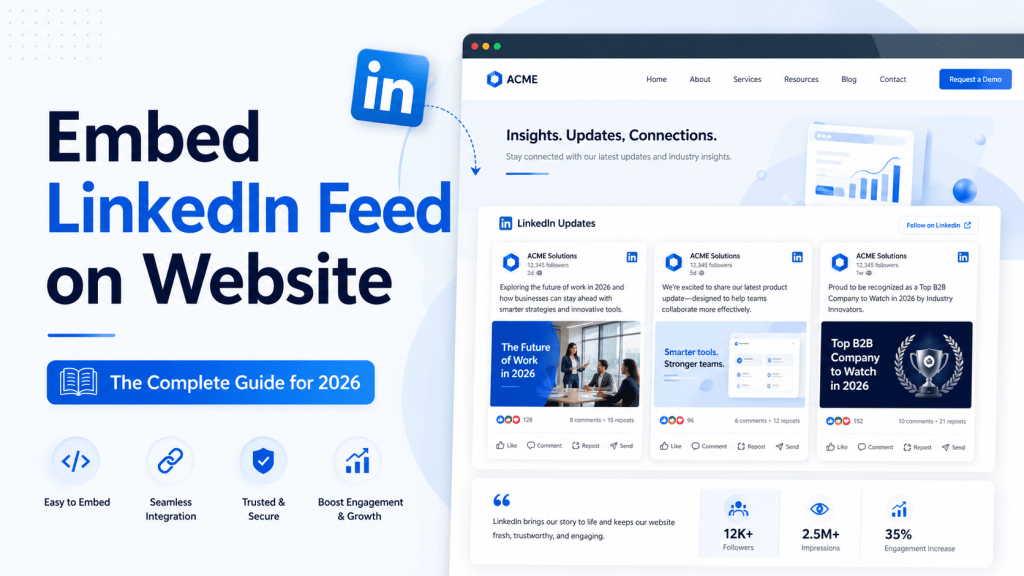
That is where embedding a LinkedIn feed on your website becomes useful. By adding a LinkedIn feed to your website, you can display your latest LinkedIn posts, company updates, announcements, professional content, videos, and social proof directly on your web pages.
In this complete 2026 guide, you will learn what a LinkedIn feed embed is, why it matters, how to embed LinkedIn feed on website using a tool like Tagembed, how to add a single LinkedIn post manually, and how to display LinkedIn feed on platforms like WordPress, HTML, Shopify, Squarespace, Wix, and Webflow.
LinkedIn officially allows members to embed public LinkedIn content from desktop when the post visibility is set to “Anyone,” but native embedding is mainly useful for individual posts, not a complete live feed. For a dynamic and customizable feed, a LinkedIn post widget is usually the better option.
What Does It Mean to Embed a LinkedIn Feed on a Website?
Embedding a LinkedIn feed on a website means displaying LinkedIn content directly on your website using an embed code, widget, or integration.
Instead of sending visitors away from your website to check your LinkedIn profile or company page, you can show your LinkedIn content inside your website layout. This can include company updates, professional posts, thought leadership content, product announcements, hiring posts, event updates, videos, images, and other LinkedIn posts.
There are two common ways to do this.
The first method is to embed a single LinkedIn post manually. In this method, you copy the embed code from one LinkedIn post and paste it into your website. This is useful when you want to showcase one specific post, such as a company announcement, event update, product launch, or testimonial.
The second method is to embed a live LinkedIn feed using a LinkedIn feed widget. This method allows you to display multiple LinkedIn posts in one place. Depending on the tool you use, the feed can be customized, moderated, and updated automatically.
For example, if your company regularly posts on LinkedIn, a live LinkedIn feed widget can help you display your latest posts on your homepage, about page, career page, or landing page. This makes your website feel more active, current, and trustworthy.
A LinkedIn feed embed is especially useful for businesses that want to connect their social presence with their website experience. Instead of keeping your LinkedIn content separate, you can use it as part of your website’s storytelling.
Why Should You Add a LinkedIn Feed to Your Website?
Adding a LinkedIn feed to your website can improve the way visitors experience your brand. It helps you show that your business is active, professional, and connected with your audience.
1. Build Professional Credibility
LinkedIn is a professional platform, so displaying your LinkedIn feed on your website can help build credibility. When visitors see your company updates, industry insights, employee posts, event participation, and thought leadership content, they get a stronger impression of your brand.
For B2B businesses, this can be especially valuable. A visitor who is considering your product or service may want to know whether your company is active, reliable, and trusted in the industry. A LinkedIn feed can help answer that question visually.
2. Show Real-Time Social Proof
A LinkedIn feed can act as social proof on your website. It can show your audience that your business is sharing updates, receiving engagement, attending events, launching products, hiring talent, or collaborating with other brands.
Instead of simply saying that your company is active, your LinkedIn feed shows it.
This can be useful on service pages, landing pages, product pages, and career pages. For example, a recruitment agency can display hiring updates. A SaaS company can show feature announcements. A marketing agency can showcase client wins or industry insights.
3. Keep Your Website Fresh
Many websites become outdated because businesses do not update their pages often. However, companies may still post regularly on LinkedIn.
By embedding your LinkedIn feed, you can bring some of that fresh content to your website. When your LinkedIn posts are displayed on your website, visitors can see recent updates without you having to rewrite website content every time.
This does not mean your LinkedIn feed should replace original website content. Your website still needs clear service pages, product information, case studies, and blog content. But a LinkedIn feed can support your existing content and make your website feel more alive.
4. Increase Visitor Engagement
A website visitor may not immediately follow your company on LinkedIn. But if they see your LinkedIn content directly on your website, they may become more interested in your brand.
A feed can encourage visitors to read posts, watch videos, click through to LinkedIn, follow your page, or explore more about your business.
This is especially helpful when the feed is placed near relevant content. For example, if you add your LinkedIn feed to a career page, visitors can see your workplace culture. If you add it to an event page, visitors can see your recent event posts.
5. Support B2B Marketing
LinkedIn is one of the most important platforms for B2B marketing. Many companies use it to share industry insights, product updates, leadership content, and customer stories.
By embedding your LinkedIn feed on your website, you can connect your social media strategy with your website conversion strategy. This helps visitors see your brand’s latest activity without leaving the website.
For B2B companies, consultants, agencies, SaaS brands, and professional service providers, this can add an extra layer of trust.
Native LinkedIn Embed vs LinkedIn Feed Widget
Before you add LinkedIn content to your website, it is important to understand the difference between a native LinkedIn embed and a LinkedIn feed widget.
Both methods are useful, but they serve different purposes.
A native LinkedIn embed is best when you want to display one specific LinkedIn post. For example, if your CEO shared an important company announcement, or your company posted about a product launch, you can embed that single post on your website.
A LinkedIn feed widget is better when you want to display multiple posts in a professional layout. A widget can help you show a complete feed, customize the appearance, moderate content, and add the feed to different website platforms.
Here is a simple comparison:
| Feature | Native LinkedIn Embed | LinkedIn Feed Widget |
|---|---|---|
| Best for | Single LinkedIn post | Multiple LinkedIn posts |
| Auto-update | No | Yes, depending on tool |
| Customization | Limited | More design control |
| Layout options | Limited | Grid, list, slider, carousel |
| Moderation | Not available | Available in many tools |
| Coding required | Basic copy-paste | No-code copy-paste |
| Platform support | Manual | Works with many CMS platforms |
| Best use case | One public post | Live LinkedIn feed on website |
If you only want to show one post, the native LinkedIn embed option may be enough. But if you want to display a live and customized LinkedIn feed, a tool like Tagembed LinkedIn Feed Widget is a more practical option.
Tagembed describes its LinkedIn widget as a way to collect LinkedIn content using sources such as hashtag, post URL, or company page, then moderate, customize, and publish the widget on a website.
How to Embed LinkedIn Feed on Website Using Tagembed
One of the easiest ways to embed LinkedIn feed on website is by using a LinkedIn feed widget. Tagembed is one such tool that allows users to collect, customize, moderate, and display LinkedIn content on websites without advanced coding.
Here is a step-by-step process.
Step 1: Create or Log In to Your Tagembed Account
To begin, go to Tagembed and create an account. If you already have an account, simply log in to your dashboard.
The dashboard is where you can create and manage your social media widgets. From here, you can choose LinkedIn as your source and start building your LinkedIn feed widget.
Step 2: Create a New Widget
After logging in, create a new widget. This widget will work as the container for your LinkedIn feed.
You can name the widget according to your purpose. For example:
- LinkedIn Homepage Feed
- Company Page LinkedIn Feed
- LinkedIn Career Page Feed
- LinkedIn Event Feed
- LinkedIn Profile Feed
Naming your widget properly is helpful if you plan to create multiple feeds for different website pages.
Step 3: Choose LinkedIn as the Source
Next, select LinkedIn as your content source.
Depending on the options available, you may be able to collect LinkedIn content from different source types, such as a company page, post URL, or hashtag. The source you choose should depend on the type of feed you want to display.
For example, if you want to display your company updates, you may choose a LinkedIn company page source. If you want to display selected posts, you may use post URLs. If you are running a campaign or event, a hashtag-based source may be useful.
Step 4: Connect or Add the LinkedIn Source
Once you select LinkedIn, connect or add the required source details. This may include entering a LinkedIn page URL, adding post URLs, or connecting the relevant LinkedIn content source.
Make sure the content you want to display is public and suitable for your website audience. If a post is private or restricted, it may not display properly outside LinkedIn.
This is an important point because LinkedIn’s native embedding also depends on public visibility. LinkedIn states that content can be embedded when visibility is set to “Anyone.”
Step 5: Customize the LinkedIn Feed Widget
After collecting the feed, customize how it looks on your website.
This is where a LinkedIn feed widget becomes more useful than a simple native embed. You can adjust the design so the feed matches your website branding.
You may customize elements such as:
- Layout
- Theme
- Background
- Feed width
- Feed height
- Card style
- Font style
- Post spacing
- Number of visible posts
- Call-to-action button
- Responsive design
For example, if you are placing the feed on your homepage, you may use a clean grid layout. If you are placing it in a sidebar, a compact list layout may work better. If you want to show posts on a landing page, a carousel-style feed may be more engaging.
The goal is to make the LinkedIn feed look like a natural part of your website, not a random external block.
Step 6: Moderate the Feed
Moderation is important when you display social content on your website.
Not every LinkedIn post may be suitable for every page. For example, you may not want to show older posts, unrelated updates, or posts that do not match the page goal.
With moderation, you can control which posts appear in the feed. This helps you keep the widget relevant and professional.
For example:
- On a homepage, show company updates and achievements.
- On a career page, show employee culture and hiring posts.
- On an event page, show event-related LinkedIn posts.
- On a product page, show product updates and customer stories.
A focused feed usually performs better than a random feed.
Step 7: Generate the LinkedIn Feed Embed Code
Once your LinkedIn feed widget is ready, generate the embed code.
This code is what you will paste into your website. Most widget tools provide a copy-paste embed code that can be added to website builders, CMS platforms, or custom HTML pages.
Tagembed’s support material explains the process of creating a LinkedIn feed widget, generating the embed code, and adding it to a website.
Step 8: Paste the Code Into Your Website
Now open the backend or editor of your website and paste the embed code where you want the LinkedIn feed to appear.
You can place the code on:
- Homepage
- About page
- Contact page
- Career page
- Landing page
- Blog sidebar
- Event page
- Product page
- Service page
Most website platforms have a custom HTML, embed, or code block where you can paste the widget code.
Step 9: Publish and Test the Feed
After adding the code, save or publish your page.
Then test the feed on different devices. Check how it looks on desktop, tablet, and mobile. Make sure the feed is responsive, easy to read, and properly aligned with the rest of your website.
Also test the loading speed and placement. If the feed feels too large, reduce the number of visible posts. If it looks too small, adjust the layout or width.
How to Embed a Single LinkedIn Post Manually
If you do not need a complete LinkedIn feed, you can embed a single LinkedIn post manually.
This is useful when you want to display one specific post on your website. For example, you may want to showcase a company milestone, client appreciation post, event announcement, or product launch update.
Here is how to embed a single LinkedIn post:
- Open LinkedIn on desktop.
- Go to the public post you want to embed.
- Click the three-dot menu on the post.
- Select the embed option.
- Copy the embed code.
- Open your website editor.
- Add a custom HTML or embed block.
- Paste the code.
- Save and publish the page.
This method is simple, but it has limitations.
Native LinkedIn embedding is mainly useful for individual posts. It does not create a complete live feed. You also get limited control over layout and design. If the original LinkedIn post is deleted or its visibility changes, the embedded content may stop appearing.
So, native embedding is good for one post. But for a full LinkedIn feed, a widget is usually better.
Where Can You Display a LinkedIn Feed on Your Website?
A LinkedIn feed can be added to different parts of your website depending on your goal.
Homepage
The homepage is one of the best places to display a LinkedIn feed. It gives new visitors a quick view of your latest company activity, updates, events, and announcements.
You can place the feed near the bottom of the homepage with a heading such as “Latest from LinkedIn” or “See What We’re Sharing.”
About Us Page
Your About Us page is where visitors learn about your company. A LinkedIn feed can make this page more dynamic by showing leadership updates, employee stories, company culture, and brand milestones.
This works especially well for agencies, startups, consultants, and B2B companies.
Career Page
If you are hiring, your LinkedIn feed can help show company culture. You can display employee posts, workplace updates, hiring announcements, team activities, and event participation.
This can help potential candidates understand your company before applying.
Landing Pages
A LinkedIn feed can add social proof to campaign landing pages. For example, if you are promoting a webinar, event, report, or product launch, you can display LinkedIn posts related to that campaign.
This can make the landing page feel more active and trustworthy.
Blog Sidebar
If your website has a blog, you can add a compact LinkedIn feed to the sidebar. This can encourage readers to connect with your brand on LinkedIn after reading your content.
Event Pages
For conferences, webinars, product events, or trade shows, a LinkedIn feed can display event updates, speaker posts, brand mentions, and campaign content.
Service Pages
If your LinkedIn posts include case studies, testimonials, or client results, you can display relevant posts on service pages to support conversion.
How to Add LinkedIn Feed on Different Website Platforms
The basic process is similar across most platforms. You create a LinkedIn feed widget, generate the embed code, paste it into your website, and publish the page.
However, each platform has a slightly different editor.
Add LinkedIn Feed to HTML Website
If you have a custom HTML website, adding a LinkedIn feed is straightforward.
First, create your LinkedIn feed widget using Tagembed. Customize the layout and generate the embed code. Then open your HTML file and paste the code where you want the feed to appear.
For example, you may place it inside a section like this:
<section class="linkedin-feed"> <!-- Paste your LinkedIn feed embed code here --></section>
After that, save the file and upload it to your server. Open the page in a browser and test the feed.
Make sure the section is responsive and works properly on mobile devices.
Add LinkedIn Feed on WordPress
WordPress users can add a LinkedIn feed using a Custom HTML block.
Go to your WordPress dashboard and open the page or post where you want to display the feed. Click the plus icon and add a Custom HTML block. Paste the Tagembed code into the block, then update or publish the page.
You can add the feed to a homepage, blog post, sidebar, footer, about page, or career page.
Tagembed also has a WordPress plugin listing that describes its tool as a way to collect, manage, and display social media feeds and Customer reviews, including LinkedIn content, in a customizable format.
Integrate LinkedIn Feed on Shopify
For Shopify, you can add a LinkedIn feed using a Custom Liquid or HTML section.
Go to your Shopify admin panel. Open Online Store and then Themes. Choose the theme you want to edit and open the theme editor. Add a Custom Liquid section or edit the page where you want the LinkedIn feed to appear.
Paste the embed code, save the changes, and preview the page.
A LinkedIn feed can be useful on Shopify pages if your brand uses LinkedIn for company announcements, B2B partnerships, press updates, or brand storytelling.
Add LinkedIn Feed on Squarespace
Squarespace users can add a LinkedIn feed using a Code Block or Embed Block.
Open the page where you want the feed to appear. Add a new block and choose the code or embed option. Paste the LinkedIn feed widget code and save the page.
After publishing, check how the feed looks on desktop and mobile. If needed, adjust the widget height or layout from your Tagembed dashboard.
Add LinkedIn Feed on Wix
In Wix, you can add a LinkedIn feed by using the embed element.
Open your Wix editor, select the page, and add an embed or custom code element. Paste the LinkedIn feed code, adjust the size, and publish the page.
Make sure the feed does not overlap with other sections, especially on mobile.
Add LinkedIn Feed on Webflow
Webflow users can add the feed using an Embed element.
Open the Webflow Designer, select the page, and drag an Embed element into the section where you want the LinkedIn feed. Paste the code, save, and publish your site.
For better design control, place the feed inside a container or section with proper spacing.
Best Practices for Embedding LinkedIn Feed on Website
Adding a LinkedIn feed is easy, but adding it properly requires planning. Here are some best practices to follow.
a. Choose the Right Placement
Do not place the LinkedIn feed randomly. Think about the purpose of the page.
If the page is about hiring, show culture and career-related LinkedIn posts. If the page is about services, show thought leadership, client wins, and company updates. If the page is about an event, show event-related posts.
The feed should support the page goal.
b. Keep the Layout Clean
A cluttered feed can distract visitors. Choose a simple layout that matches your website.
For homepage sections, a grid or carousel layout can work well. For sidebars, a compact list may be better. For landing pages, show only the most relevant posts.
c. Do Not Show Too Many Posts
More posts do not always mean better results. If you display too many posts, the feed may look heavy and distract users from your main content.
Start with a small number of posts, such as three to six, and test how it looks.
d. Make It Mobile-Friendly
Many visitors browse websites on mobile devices. Your LinkedIn feed should look clean and readable on smaller screens.
Before publishing, check the feed on different screen sizes. Make sure text is readable, cards are not cut off, and the layout does not break.
e. Moderate the Content
Moderation helps you control the quality of your feed. If a post is outdated, irrelevant, or not suitable for a specific page, hide it from the widget.
This keeps your website professional and focused.
f. Match Your Brand Design
Your LinkedIn feed should blend with your website design. Adjust colors, spacing, fonts, and layout so the feed looks like part of the page.
A feed that looks visually disconnected may reduce the professional feel of the website.
g. Add a CTA Near the Feed
A LinkedIn feed can become more effective when you add a call-to-action near it.
For example:
- Follow us on LinkedIn
- View more company updates
- Connect with us on LinkedIn
- Explore our latest insights
- See what we are sharing
This encourages visitors to take the next step.
Common LinkedIn Feed Embed Problems and Fixes
Sometimes, a LinkedIn feed may not display correctly. Here are common issues and how to fix them.
1. LinkedIn Feed Is Not Showing
If your LinkedIn feed is not showing, first check whether the embed code was copied correctly. Missing script tags or broken code can stop the feed from loading.
Also check whether the LinkedIn content is public. If the post or page is restricted, it may not appear properly.
You should also clear your website cache and refresh the page.
2. Feed Looks Broken on Mobile
If the feed does not look good on mobile, check the widget width and layout settings. Use a responsive layout and avoid fixed widths that may not fit smaller screens.
Also preview the feed on different devices before publishing.
3. Website Builder Removes the Code
Some website editors remove scripts or custom code when pasted into a normal text block. Always use a Custom HTML, Code, Embed, or Custom Liquid block depending on your platform.
For WordPress, use the Custom HTML block. For Shopify, use Custom Liquid. For Squarespace, use a Code Block. For Webflow, use an Embed element.
4. Feed Loads Slowly
If the feed slows down your page, reduce the number of visible posts. Avoid adding too many widgets on one page.
You can also place the feed lower on the page so the main content loads first.
5. Old Posts Are Appearing
If old or irrelevant posts appear, use moderation and filtering. Keep the feed updated and relevant to the page where it appears.
For example, a career page should not show unrelated product updates if the goal is to attract job applicants.
LinkedIn Feed Embed Examples by Business Type
Different businesses can use LinkedIn feeds in different ways.
– SaaS Companies
SaaS companies can display product updates, feature announcements, webinar posts, customer stories, and industry insights.
A LinkedIn feed can help website visitors see that the company is active and continuously improving its product.
– Marketing Agencies
Agencies can show client wins, campaign results, case studies, team updates, and thought leadership posts.
This can help build trust with potential clients.
– Recruitment Companies
Recruitment firms can display job posts, hiring updates, workplace tips, candidate success stories, and employer branding content.
This makes the website more useful for both employers and job seekers.
– Consultants and Coaches
Consultants can display expert opinions, LinkedIn articles, speaking sessions, podcast appearances, and client-focused insights.
This helps establish authority.
– Ecommerce and D2C Brands
Even though LinkedIn is more B2B-focused, ecommerce brands can use it to show company news, partnerships, sustainability updates, hiring posts, and brand milestones.
– Educational Institutions
Universities, coaching centers, and training companies can use LinkedIn feeds to show student achievements, alumni updates, course announcements, and placement news.
Is Embedding a LinkedIn Feed Good for SEO?
Embedding a LinkedIn feed does not automatically guarantee higher rankings in search engines.
However, it can support your website experience in indirect ways.
A LinkedIn feed can make your website more engaging by showing fresh and relevant content. It can also build trust by showing real company activity, professional updates, and audience engagement.
For B2B websites, this can support credibility. Visitors may spend more time on your page, explore your posts, or follow your company on LinkedIn.
But you should not depend only on embedded social content for SEO. Your website still needs original content, optimized headings, helpful copy, fast loading speed, internal links, and clear calls to action.
The best approach is to use a LinkedIn feed as a supporting element, not as a replacement for high-quality website content.
Native Embed or Tagembed: Which Is Better?
The answer depends on your goal.
If you only want to embed one LinkedIn post, the native LinkedIn embed option is simple and useful.
But if you want to display a complete LinkedIn feed on your website, a widget is usually better. A LinkedIn feed widget gives you more flexibility, design control, and content management options.
With Tagembed, you can create a LinkedIn feed widget, collect LinkedIn content, customize the layout, moderate posts, generate embed code, and publish it on your website. This makes it useful for businesses that want a no-code solution.
A widget is also more practical if you want to add LinkedIn feed on WordPress, HTML, Shopify, Squarespace, Wix, Webflow, or other website platforms.
Final Thoughts
Embedding a LinkedIn feed on your website is a smart way to connect your professional social presence with your website experience.
If you only want to display a single post, you can use LinkedIn’s native embed option. But if you want to show a live, customizable, and professional LinkedIn feed, using a LinkedIn feed widget is a better option.
A tool like Tagembed LinkedIn Feed Widget can help you collect LinkedIn content, customize the feed, moderate posts, generate embed code, and display the feed on different website platforms without advanced coding.
Whether you run a SaaS company, agency, recruitment business, ecommerce brand, consulting website, or professional portfolio, a LinkedIn feed can help you show real-time updates, build credibility, and make your website more engaging.
The key is to place the feed strategically. Add it where it supports your visitor’s journey — homepage, about page, career page, landing page, service page, or event page.
When used correctly, a LinkedIn feed can turn your website from a static page into a more active and trustworthy brand experience.


Leave a comment