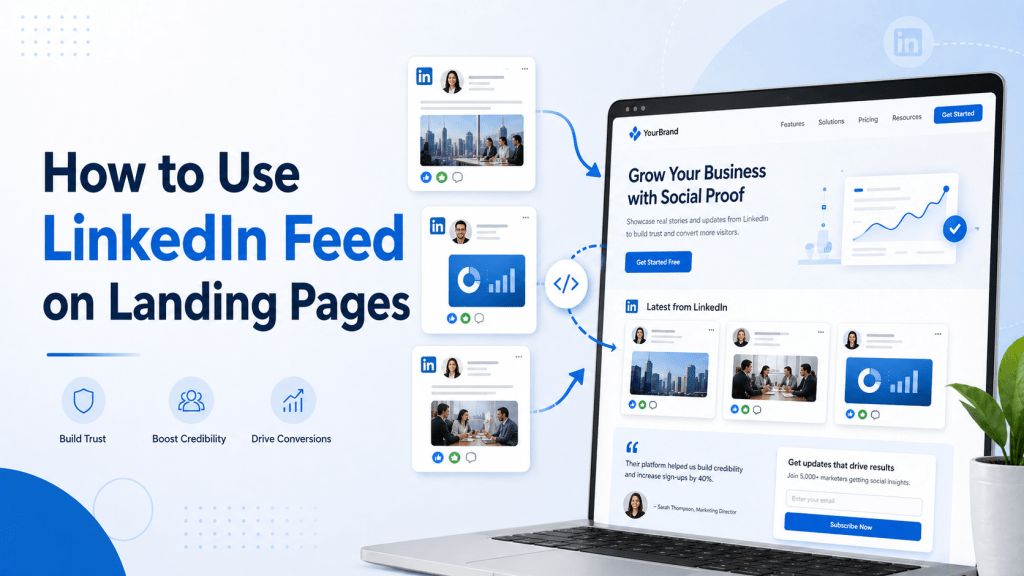
A landing page is a special page on your website. It is made for one main goal. That goal can be to get leads, sell a product, book calls, collect email addresses, promote an event, or ask people to sign up.
But here is the problem.
Many landing pages look nice, but they do not feel real. Visitors may ask, “Can I trust this business?” or “Is this company active?”
This is where a LinkedIn feed can help.
A LinkedIn company widget shows your LinkedIn posts directly on your landing page. It can show your company updates, client wins, event posts, product news, expert tips, and team stories.
When people see fresh LinkedIn posts on your landing page, they can feel that your business is active and trusted by real people.
In this blog, you will learn how to use LinkedIn feed on landing pages in a simple and smart way.
What Is a LinkedIn Feed on a Landing Page?
A LinkedIn feed is a section on your website that shows your LinkedIn posts.
Think of it like a small window from your LinkedIn page placed inside your landing page.
Instead of asking visitors to go to LinkedIn, you bring your LinkedIn content to your website.
A LinkedIn post feed can show many types of content, such as:
- Company posts
- Product updates
- Event announcements
- Client stories
- Hiring posts
- Team updates
- Expert tips
- Business news
On a landing page, this feed works like trust proof. It shows that your brand is not empty or inactive. It shows that your business is sharing updates, helping people, and staying active online.
For example, if you are promoting a webinar, you can show LinkedIn posts about the speaker, event details, and past event photos.
If you are selling a service, you can show client results, testimonials, and helpful LinkedIn posts.
This makes your landing page stronger.
Why Should You Use LinkedIn Feed on Landing Pages?
Adding a LinkedIn feed to a landing page can help in many ways. It is not just for design. It can also help people trust your business.
a. It Builds Trust
People do not take action easily on a website they do not trust.
Before someone fills out a form, books a call, or buys something, they want to feel safe.
A LinkedIn feed can help because it shows real content from your LinkedIn page. Visitors can see that your company is active and professional.
When they see real posts, real updates, and real engagement, they may feel more confident.
b. It Shows Your Brand Is Active
An old or empty landing page can make people unsure.
But when your landing page shows fresh LinkedIn posts, it feels alive.
Visitors can see that your business is posting updates, sharing ideas, and talking to people. This makes your brand look active and serious.
c. It Adds Social Proof
Social proof means showing that other people know, trust, or like your business.
LinkedIn posts can show likes, comments, team updates, customer stories, and company news. This helps visitors believe that your business is real.
For example, a post about a happy client can make new visitors feel safer about contacting you.
d. It Keeps Your Landing Page Fresh
Changing a landing page again and again can take time.
But if you add a LinkedIn feed, your page can show new posts automatically. When you post something new on LinkedIn, it can also appear on your landing page.
This keeps your landing page updated without much extra work.
e. It Can Help Visitors Take Action
A landing page has one main goal. You may want visitors to click a button, book a demo, join an event, or contact your team.
A LinkedIn feed can support that goal.
When visitors see proof that your business is trusted and active, they may be more ready to take the next step.
Best Types of LinkedIn Content to Show on Landing Pages
Not every LinkedIn post should be shown on a landing page.
You should choose posts that match the goal of the page.
For example, if your landing page is about a product, show product posts. If your page is about hiring, show team and culture posts.
Here are the best types of LinkedIn content to display.
1. Customer Reviews or Testimonials
Testimonials are great for landing pages.
They show what other people think about your business. If someone has said good things about your product or service on LinkedIn, you can show that post on your landing page.
This helps new visitors trust you faster.
2. Case Studies or Success Stories
A case study shows how your business helped someone.
For example, you can show a LinkedIn post that says how your service helped a client get more leads, save time, or grow their business.
This is useful because people like proof.
3. Product Updates
If your landing page is about a product, show LinkedIn posts about your product.
You can show posts about new features, product launches, updates, or user feedback.
This helps visitors understand that your product is growing and improving.
4. Company News
Company news can also build trust.
You can show posts about awards, milestones, partnerships, office updates, or business growth.
This tells visitors that your company is active and moving forward.
5. Event Posts
If your landing page is for a webinar, conference, workshop, or live event, LinkedIn event posts are very useful.
You can show posts about speakers, event topics, registration updates, and past event photos.
This can make more people want to join.
6. Thought Leadership Posts
Thought leadership means sharing smart ideas and helpful advice.
These posts are good for consultants, agencies, coaches, founders, and B2B brands.
When visitors see useful tips from your team, they may see you as an expert.
7. Hiring or Team Culture Posts
If your landing page is made for hiring, show posts about your team.
You can display employee stories, office photos, hiring updates, and company culture posts.
This helps job seekers understand what it feels like to work with your company.
Where to Place LinkedIn Feed on a Landing Page
Where you place your LinkedIn feed matters.
If you place it in the wrong spot, it can distract visitors. If you place it in the right spot, it can support your landing page goal.
– Near the Bottom of the Page
For most landing pages, the best place for a LinkedIn feed is near the bottom.
First, visitors should understand your offer. They should know what you do, how it helps them, and why they should care.
After that, they can see your LinkedIn feed as extra proof.
This order works well because the feed supports the message instead of taking attention away from it.
– After Testimonials
Another good place is after the testimonial section.
Testimonials already build trust. A LinkedIn feed can make that trust stronger.
For example, first show written reviews from clients. Then show LinkedIn posts with customer stories, company updates, or expert tips.
Together, these sections can make your page feel more real.
– Near the Final Call-to-Action
A call-to-action is the button or form you want people to use.
Examples include:
- Book a demo
- Contact us
- Sign up now
- Register today
- Get started
You can place the LinkedIn feed before the final call-to-action.
This gives visitors one last reason to trust you before they click the button.
– On Event Landing Pages
For event landing pages, LinkedIn feed can be placed near speaker details or registration information.
You can show posts about the event, speaker announcements, audience comments, or past event moments.
This can make the event feel more exciting.
– Avoid the Top Hero Section
The hero section is the first section people see on your landing page.
Do not place your LinkedIn feed at the very top.
The top section should clearly explain your offer. It should have a strong headline, short text, and one clear button.
The LinkedIn feed should support the page, not take over the page.
How to Use LinkedIn Feed for Different Landing Page Goals
Different landing pages have different goals. Your LinkedIn feed should match that goal.
Let’s look at some simple examples.
For Lead Generation Landing Pages
A lead generation landing page is made to collect leads. A lead can be a name, email address, phone number, or form submission.
For this type of page, your LinkedIn feed should build trust.
You can show expert posts, client wins, company updates, and educational content.
For example, a marketing agency can show LinkedIn posts about client results, marketing tips, or successful campaigns.
This helps visitors feel that the agency knows what it is doing.
For Product Landing Pages
A product landing page is made to promote a product.
Here, your LinkedIn feed can show product updates, feature launches, customer feedback, and product tips.
For example, a software company can show LinkedIn posts about new features, customer success stories, and product videos.
This helps visitors see that the product is useful and active.
For Webinar Landing Pages
A webinar landing page is made to get people to register for an online event.
Here, you can show LinkedIn posts about the webinar topic, speakers, date, and benefits.
You can also show posts from past webinars.
For example, a business coach can show posts about an upcoming webinar and comments from people who joined earlier sessions.
This can make more people interested in registering.
For Recruitment Landing Pages
A recruitment landing page is made to attract job seekers.
Here, your LinkedIn feed should show your company culture.
You can display posts about team events, employee stories, open jobs, office life, and company values.
This helps job seekers imagine working with your company.
For Service Landing Pages
A service landing page promotes a service like consulting, marketing, design, legal help, or coaching.
For this type of page, your LinkedIn feed should show proof and knowledge.
You can show testimonials, case studies, expert tips, and client success posts.
This helps visitors believe that your service can help them.
How to Add LinkedIn Feed to a Landing Page
Adding a LinkedIn feed to your landing page is not very hard. You do not need to be a coding expert.
Here are the simple steps.
Step 1: Choose the LinkedIn Content
First, decide what type of LinkedIn content you want to show.
Ask yourself:
What is the goal of this landing page?
If your goal is to get leads, show trust-building posts. If your goal is to promote an event, show event posts. If your goal is hiring, show team posts.
Step 2: Use a LinkedIn Feed Widget Tool
A LinkedIn feed widget tool helps you collect LinkedIn posts and show them on your website.
These tools usually give you a simple way to connect your LinkedIn content and design the feed.
Step 3: Customize the Design
Your LinkedIn feed should match your landing page.
You can change the layout, colors, size, number of posts, and style.
Try to make the feed look clean and simple.
Step 4: Copy the Embed Code
Most widget tools give you a small embed code.
This code is used to place the LinkedIn feed on your landing page.
Step 5: Paste It on Your Landing Page
Now paste the code where you want the feed to appear.
You can add it near the bottom, after testimonials, or before the final call-to-action.
Step 6: Test the Page
After adding the feed, test your landing page.
Check how it looks on desktop and mobile. Make sure the feed loads properly. Also check that the page is not too slow.
Best Design Tips for LinkedIn Feed on Landing Pages
A LinkedIn feed should make your landing page better. It should not make it messy.
Here are some easy design tips.
Keep It Clean
Do not show too many posts.
Three to six posts are enough for most landing pages. Too many posts can confuse visitors.
A clean feed is easier to read and looks more professional.
Match Your Brand Colors
Your LinkedIn feed should look like part of your website.
Use colors, fonts, and styles that match your landing page. This makes the page look smooth and well-designed.
Use a Simple Layout
Simple layouts work best.
You can use a grid layout or carousel layout. A grid shows posts in boxes. A carousel lets visitors slide through posts.
Both can work well, but keep the design simple.
Make It Mobile-Friendly
Many people visit landing pages on phones.
Your LinkedIn feed should look good on mobile screens. The text should be readable, and the posts should not be too wide or too small.
Do Not Distract From the Main Button
The main goal of your landing page is still the action button.
Your LinkedIn feed should support that button. It should not take attention away from it.
The feed should help visitors trust you, then guide them back to the main action.
Common Mistakes to Avoid
A LinkedIn feed can help your landing page, but only if you use it the right way.
Here are some common mistakes to avoid.
a.) Adding Too Many Posts
Too many posts can make your page look crowded.
Visitors may feel confused and leave the page.
Show only the most useful posts.
b.) Showing Unrelated Posts
Your LinkedIn feed should match the page goal.
If your landing page is about a product, do not show random hiring posts. If your page is about an event, do not show unrelated company updates.
Keep the feed focused.
c.) Placing the Feed Too High
Do not place the feed at the top of the page.
First, explain your offer. Then show the LinkedIn feed as proof.
d.) Ignoring Mobile Design
A feed that looks good on desktop may not look good on mobile.
Always check your landing page on a phone before publishing.
e.) Forgetting Page Speed
A slow landing page can make people leave.
After adding the LinkedIn feed, test your page speed. Make sure the feed loads smoothly.
Simple Example of a Landing Page With LinkedIn Feed
Let’s say you run a digital marketing agency.
You have a landing page for your lead generation service.
Your page can look like this:
First, you add a strong headline that explains your offer.
Then, you add a short section about the problem your audience has. After that, you explain how your service helps solve the problem.
Next, you show your main benefits.
Then, you add client testimonials.
After testimonials, you add your LinkedIn feed. The feed can show client wins, marketing tips, team updates, and company posts.
At the end, you add a final call-to-action button that says “Book a Free Call.”
In this example, the LinkedIn feed supports the landing page. It shows that your agency is active, helpful, and trusted.
Final Thoughts
Using a LinkedIn feed on landing pages is a simple way to build trust.
It helps visitors see real content from your brand. It can show company updates, client stories, product news, event posts, expert tips, and team culture.
But remember, your LinkedIn feed should not take over the page.
Keep it clean. Show only useful posts. Place it in the right section. Make sure it works well on mobile. Also check that it does not slow down your page.
A landing page should help visitors take one action. A LinkedIn feed can support that action by making your page feel more real and trusted.
If you want to make your landing page stronger, adding a LinkedIn feed is a smart and simple step.
FAQs
Can I add LinkedIn feed to any landing page?
Yes. You can add a LinkedIn feed to product pages, service pages, event pages, lead generation pages, and recruitment pages.
Where should I place LinkedIn feed on a landing page?
The best place is usually near the bottom of the page. You can place it after testimonials or before the final call-to-action.
How many LinkedIn posts should I show?
Three to six posts are enough for most landing pages. This keeps the page clean and easy to understand.
Does LinkedIn feed help build trust?
Yes. It shows real LinkedIn activity from your brand. This can make visitors feel more confident about your business.
Can LinkedIn feed slow down my landing page?
It can slow down the page if it is not added properly. Use a good widget tool and test your page speed after adding the feed.


Leave a comment