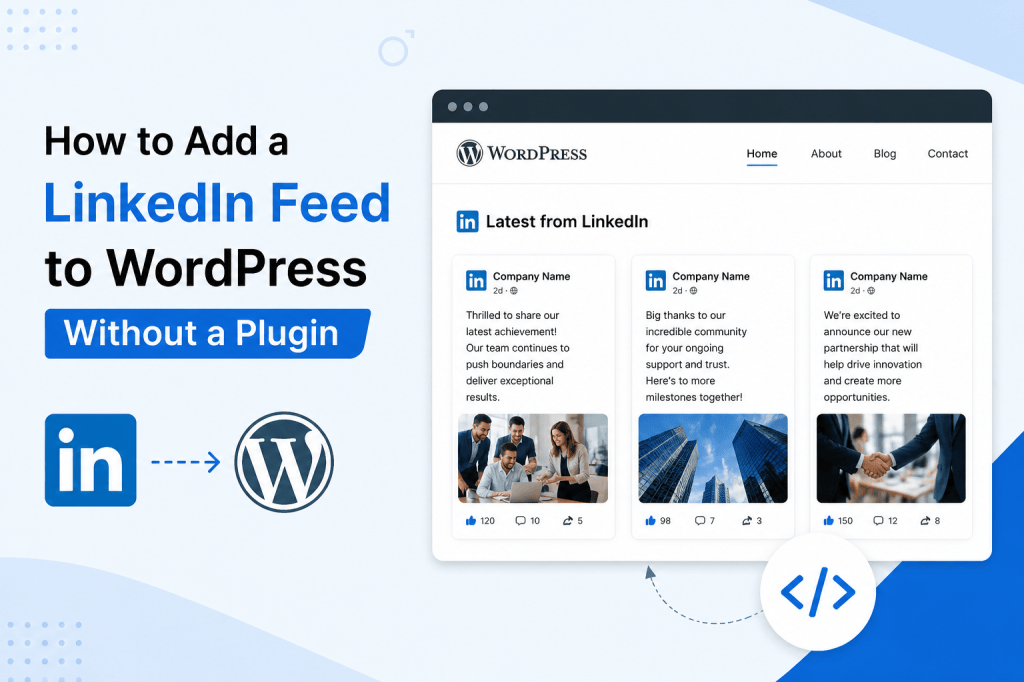
If you run a business page on WordPress, showing your LinkedIn activity (company updates, posts, hiring announcements, or personal posts) can add credibility to your website. LinkedIn is where professionals spend their time, and showing your feed on your site tells visitors your brand is active and engaged in its industry.
The usual advice is to install a plugin. But more plugins mean more security risk, more maintenance, more update conflicts, and a slower site. If you’re trying to keep your WordPress site lean, you probably don’t want a whole plugin just to show a handful of LinkedIn posts.
You don’t need one. This guide covers how to add a LinkedIn feed to WordPress without installing a plugin, using WordPress’s built-in HTML block along with a free tool like Tagembed to generate your feed’s embed code.
Why Add a LinkedIn Feed to Your Website?
Before the how-to, a quick note on why this is worth doing. Embedding your LinkedIn feed on website can help you:
- Build trust by showing real proof that your company is active and established
- Keep your website content current without manually updating your homepage or blog
- Give potential customers, partners, or job applicants an easy way to see your recent activity
- Grow LinkedIn engagement by giving website visitors an easy way to follow, like, or comment
- Reuse content you’re already creating on LinkedIn instead of writing new website copy
Why Skip the Plugin?
Plugins are convenient, but they come with trade-offs:
- Security vulnerabilities. Outdated or poorly maintained plugins are a common entry point for hackers.
- Site speed. Every plugin adds code that WordPress has to load.
- Compatibility issues. Plugins can clash with your theme or other plugins and sometimes break your site.
- Maintenance. Plugins need regular updates, and abandoned plugins become dead weight.
A lightweight embed code is just a small snippet of HTML or JavaScript you paste into your page. It does one job, it doesn’t touch your WordPress core files, and it’s easy to remove if you change your mind.
Method: Embed a LinkedIn Feed Using Tagembed (No Plugin Required)
The simplest no-plugin way to display a LinkedIn feed on WordPress is to use a social media aggregator tool like Tagembed. Tagembed pulls in your LinkedIn feed (or posts with a specific hashtag) and generates a small embed code that you paste directly into WordPress using the built-in Custom HTML block. No plugin installation needed.
Here are the steps.
Step 1: Create a Free Tagembed Account
Go to the Tagembed website and sign up for a free account, or log in with Google for a faster setup.
Step 2: Select LinkedIn as Your Source
In the dashboard, click “Create Feed” or “Add Source,” then choose LinkedIn from the list of available platforms.
Step 3: Connect and Customize Your Feed
Tagembed can pull content in a few different ways, such as:
- Your company page’s public posts
- Posts containing a specific hashtag
- Posts from a personal profile, where publicly available
Pick the option that fits your goal, then customize how the feed looks. Tagembed offers layout options such as grid, carousel, masonry, and a simple list, along with settings for colors, fonts, post count, and branding, so the widget matches your website’s design.
Step 4: Moderate Your Posts (Optional)
If you only want to show specific posts rather than everything from your feed, Tagembed’s moderation panel lets you manually approve or hide individual posts before they go live on your site.
Step 5: Generate the Embed Code
Once the feed looks the way you want, click “Publish” or “Get Code.” Tagembed generates a short HTML/JavaScript embed snippet for your feed.
Step 6: Add the Code to WordPress (No Plugin Needed)
Now place that code on your WordPress site using the built-in block editor:
- Open the page or post where you want the LinkedIn feed to appear
- Click the “+” icon to add a new block
- Search for and select the “Custom HTML” block
- Paste the embed code you copied from Tagembed
- Click “Preview” to check that the feed displays correctly
- Publish or update your page
Your LinkedIn feed is now live on your WordPress site, and you never had to touch the Plugins menu.
Step 7 (Alternative): Add the Code to a Widget Area
If you’d rather show the feed in your sidebar or footer instead of inside a page, use the same embed code in a WordPress Custom HTML widget:
- Go to Appearance > Widgets in your WordPress dashboard
- Drag a Custom HTML widget into the area where you want the feed to appear (sidebar, footer, etc.)
- Paste your Tagembed embed code into the widget’s content box
- Click Save
Other No-Plugin Options (And Their Limitations)
A couple of alternative approaches exist, though each has notable drawbacks compared to using an aggregator tool like Tagembed.
LinkedIn’s own “Follow” or “Share” buttons. LinkedIn provides basic embeddable buttons through its developer resources, but these only offer follow or share functionality, not an actual scrolling feed of your posts.
Manual iframe embedding. Technically possible, but LinkedIn doesn’t officially support public iframe embedding of a live post feed the way platforms like Instagram or X do, so this method is unreliable and prone to breaking.
Building a custom LinkedIn API integration. Developers can use the LinkedIn API to pull posts and display them with custom code. This works, but it requires ongoing developer time, LinkedIn API approval, authentication handling, and maintenance, which is a lot for most businesses that just want a feed on their homepage.
For most WordPress users, a dedicated social feed aggregator remains the fastest, most reliable, plugin-free way to get a live, auto-updating LinkedIn feed.
Conclusion
Adding a LinkedIn feed to your WordPress website doesn’t have to mean adding another plugin. With a tool like Tagembed, you can generate a clean, customizable embed code in minutes and drop it into a Custom HTML block or widget, keeping your site fast and easy to maintain while still showing your latest LinkedIn activity.
To get started, head to Tagembed and create your free LinkedIn feed widget.
FAQs
1. Does this method slow down my website?
A lightweight embed snippet has far less impact on load time than a full plugin, since it only loads the specific widget script instead of adding to WordPress’s core processing.
2. Can I display posts from multiple LinkedIn sources at once?
Yes. Tools like Tagembed let you combine posts from a company page and specific hashtags into a single feed.
3. Will the feed update automatically?
Yes. Once connected, the feed pulls in new posts automatically, so you don’t need to manually update your website every time you post on LinkedIn.


Leave a comment